Connect KlickAnalytics to Claude and OpenAI with MCP, step by step
Give Claude, Claude Code and OpenAI Codex live market data: get your API key, add one server address, and ask questions that run on real KlickAnalytics numbers.
AI assistants are good at reasoning about markets and poor at knowing today's numbers. Ask one about NVDA's momentum or how correlated bonds and equities have been this year, and it guesses or tells you to look it up yourself.
This guide connects KlickAnalytics to the assistant you already use, so it can look the numbers up itself. It takes about five minutes: get your API key, add one server address, and ask your first question. Every command below can be pasted as it is.
What MCP is, in one paragraph
MCP — the Model Context Protocol — is the open standard AI apps use to connect to outside tools. KlickAnalytics runs an MCP server at https://api.klickanalytics.com/mcp. Once your assistant is connected to it, the assistant can search the same 160+ commands as the KlickAnalytics CLI and Slack app — technical analysis, fundamentals, earnings, statistics, portfolio and risk, screening, options and macro — read how each one is used, run it, and reason over the result. You ask in plain language; it picks the commands.
Step 1: get your API key
- Sign in to KlickAnalytics and open API Settings (klickanalytics.com/user_apis).
- Under API Key - CLI, click Create API Key and copy it. If you already use the CLI, you already have it — it is the same key.
MCP access is included with paid plans. A key from a free account is recognised, but the server answers with an upgrade message instead of data.
Treat the key like a password. The steps below keep it in an environment variable rather than typing it into files. On macOS or Linux, add this line to ~/.zshrc or ~/.bashrc and open a new terminal:
export KLICKANALYTICS_CLI_API_KEY=your_api_key_here
Step 2: connect your assistant
Pick the one you use. You can connect several; they all use the same key.
| You use | Go to |
|---|---|
| Claude Code (terminal) | Option A |
| Claude Desktop app | Option B |
| OpenAI Codex CLI | Option C |
| Your own app on the Claude or OpenAI API | Option D |
Option A: Claude Code
Paste this into your terminal:
claude mcp add --transport http --scope user klickanalytics https://api.klickanalytics.com/mcp --header "Authorization: Bearer $KLICKANALYTICS_CLI_API_KEY"
--scope user makes KlickAnalytics available in every project. Check that it connected:
claude mcp list
Inside Claude Code, /mcp shows the same list.
Option B: Claude Desktop
Claude Desktop reaches online servers through a small helper called mcp-remote, which runs on Node.js — install Node.js first if you don't have it.
- In Claude Desktop, open Settings › Developer and click Edit Config.
- Paste the block below into the file, replacing
your_api_key_herewith your key. If the file already has anmcpServerssection, add theklickanalyticsentry inside it. - Save the file and quit and reopen Claude Desktop. KlickAnalytics appears in the tools menu of a new chat.
{
  "mcpServers": {
    "klickanalytics": {
      "command": "npx",
      "args": [
        "mcp-remote",
        "https://api.klickanalytics.com/mcp",
        "--header",
        "Authorization:${AUTH_HEADER}"
      ],
      "env": {
        "AUTH_HEADER": "Bearer your_api_key_here"
      }
    }
  }
}
Keep Authorization:${AUTH_HEADER} exactly as written, with no space after the colon — a space there breaks the setting on Windows.
Option C: OpenAI Codex CLI
Paste this into your terminal:
codex mcp add klickanalytics --url https://api.klickanalytics.com/mcp --bearer-token-env-var KLICKANALYTICS_CLI_API_KEY
Codex reads the key from your environment each time it starts, so it is never written into Codex's settings. Check that it connected:
codex mcp list
If Codex does not recognise --url, update Codex to the latest version and try again.
Option D: your own app on the Claude or OpenAI API
Both APIs can connect to the server for you, so your app sends an ordinary request and the model makes the KlickAnalytics calls. Your developers need two values:
| Setting | Value |
|---|---|
| Server address | https://api.klickanalytics.com/mcp |
| Authentication | Your API key, sent as Authorization: Bearer your_api_key_here |
- Claude API: use the MCP connector and put the key in the server's
authorization_token. - OpenAI Responses API: add an MCP tool and put the key in its
headers. OpenAI does not keep the key between requests, so send it every time.
Keep the key on your server — never in a web page or a mobile app, where anyone could read it.
Step 3: ask your first question
Start a new conversation and ask the way you would ask an analyst. The assistant finds the right commands, runs them and shows you what it ran, so you can see where every number came from.
| Ask | What it looks up |
|---|---|
| “Where is AAPL trading, and how does that compare with its 52-week range?” | The latest quote |
| “Run a technical analysis on NVDA. Is momentum improving or fading?” | Moving averages, RSI, MACD and volatility |
| “How often has TSLA beaten earnings estimates over the last eight quarters?” | Earnings history with estimates and results |
| “Compare AAPL, MSFT, GOOGL, META and AMZN. Which looks cheapest?” | The five companies side by side |
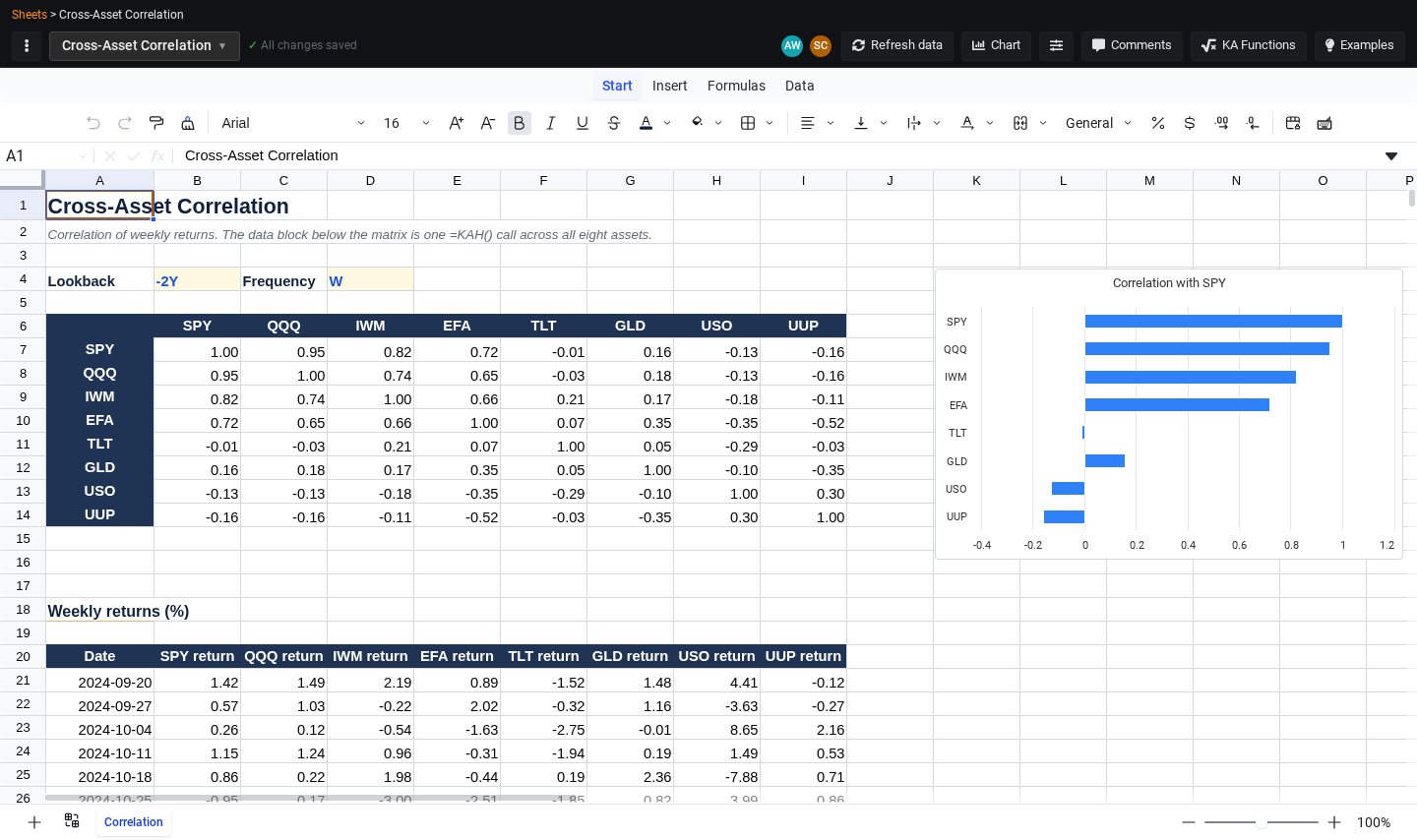
| “Are SPY, QQQ, TLT and GLD diversifying each other right now?” | A correlation matrix |
| “How risky is SPY? Give me volatility, worst drawdown and value at risk.” | Risk and drawdown statistics |
Good habits
- Be specific about symbols and periods. “NVDA over the last year” gets a better answer than “chips lately”.
- Ask for less when results are long. Big tables come back as a preview of the first rows, which keeps the conversation fast. Narrow the dates or the list of symbols when you need every row.
- Nothing changes unless you ask. Almost every command only reads data. The few that change your account, such as adding a symbol to a watchlist, need the assistant to explicitly confirm before they run.
- If your key leaks, regenerate it. Regenerate API Key on API Settings replaces the old key everywhere at once. Update your environment variable and any Claude Desktop config afterwards — and the CLI, which uses the same key.
What about the ChatGPT and Claude websites?
The steps above cover the apps that can send your API key. ChatGPT's developer mode currently connects only to servers that sign in with OAuth or need no sign-in, so it cannot send a KlickAnalytics key yet. To use KlickAnalytics with OpenAI models today, use Codex or the OpenAI API; with Claude, use Claude Code, Claude Desktop or the Claude API.
If something does not work
| You see | What to do |
|---|---|
| “missing api_key” | The key was not sent. Check that KLICKANALYTICS_CLI_API_KEY is set in the terminal you started the assistant from — open a new terminal after editing your profile. |
| “invalid or inactive api_key” | The key is mistyped or was regenerated. Copy it again from API Settings. |
| “MCP access requires a paid subscription” | The key belongs to a free account. See plans. |
| KlickAnalytics does not appear in Claude Desktop | Check that Node.js is installed and the config file is valid JSON, then quit Claude Desktop completely and reopen it. |