Set up KlickAnalytics in Slack for your desk, step by step
Add the app to your workspace, connect everyone on the desk, and build a daily routine of commands — from the morning check to sharing a chart with the channel.
This guide takes a desk from nothing to a working routine in about ten minutes: the app installed in your workspace, everyone connected with their own account, a channel ready for questions, and a short list of commands worth knowing on day one. Every command below can be pasted into Slack as it is.
Step 1: add the app to your workspace
One person does this once for the whole workspace.
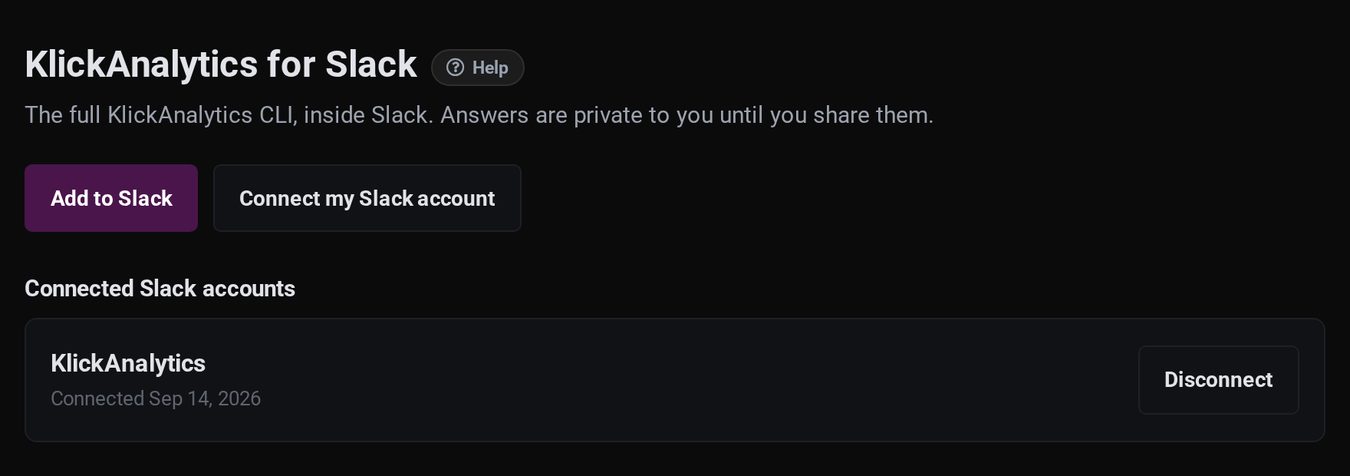
- Sign in to KlickAnalytics and open My › Slack.
- Click Add to Slack, choose your workspace, and click Allow.
You come back to the Slack page with the workspace listed under Connected Slack accounts — the person who adds the app is connected automatically — and a welcome message from the app arrives in Slack with a few commands to try.
Some companies only allow apps their Slack administrators have approved. If yours does, Slack asks you to request approval instead of installing; once an administrator approves it, come back and click Add to Slack again.
Step 2: connect everyone on the desk
Commands run with each person's own KlickAnalytics account, so each person connects once. They can do it from Slack: typing any command, or /ka connect, shows a Connect account button. It opens KlickAnalytics, asks them to sign in if they have not, and then asks Slack to confirm who they are. That is all — their welcome message arrives a moment later.
Anyone can browse /ka help and /ka search before connecting, so people can look around first.
Step 3: invite the app to the desk channel
/ka works in every channel without an invitation. To ask by mentioning the app instead, invite it to the channel once:
/invite @KlickAnalyticsAfter that, @KlickAnalytics quote -s TSLA works there too. Answers to mentions are private to the person who asked, like every other answer.
Step 4: a morning routine
These six commands cover the first ten minutes of most days. Run them in a direct message with the app, where nobody else sees them, and share only what matters.
| Question | Command |
|---|---|
| Where did it close? | /ka quote -s AAPL |
| When does it report next? | /ka earnings-calendar NVDA |
| What does the technical picture say? | /ka ta -s NVDA |
| How do the names we follow compare? | /ka compare -s AAPL,MSFT,GOOGL,META,AMZN |
| Are stocks, bonds and gold moving together? | /ka corr-matrix -s SPY,QQQ,TLT,GLD |
| How much risk is in the index? | /ka risk -s SPY |
For a single symbol, /ka NVDA on its own is the fastest way to a quote.
Step 5: share what matters
When an answer belongs in the conversation, press Share to channel under it. The result — and the chart, if there is one — is posted for everyone with your name on it, and your private copy is removed. Charts are the most useful thing to share, because the whole channel can see the move instead of reading about it:
/ka chart -s NVDA -type line -tf 1y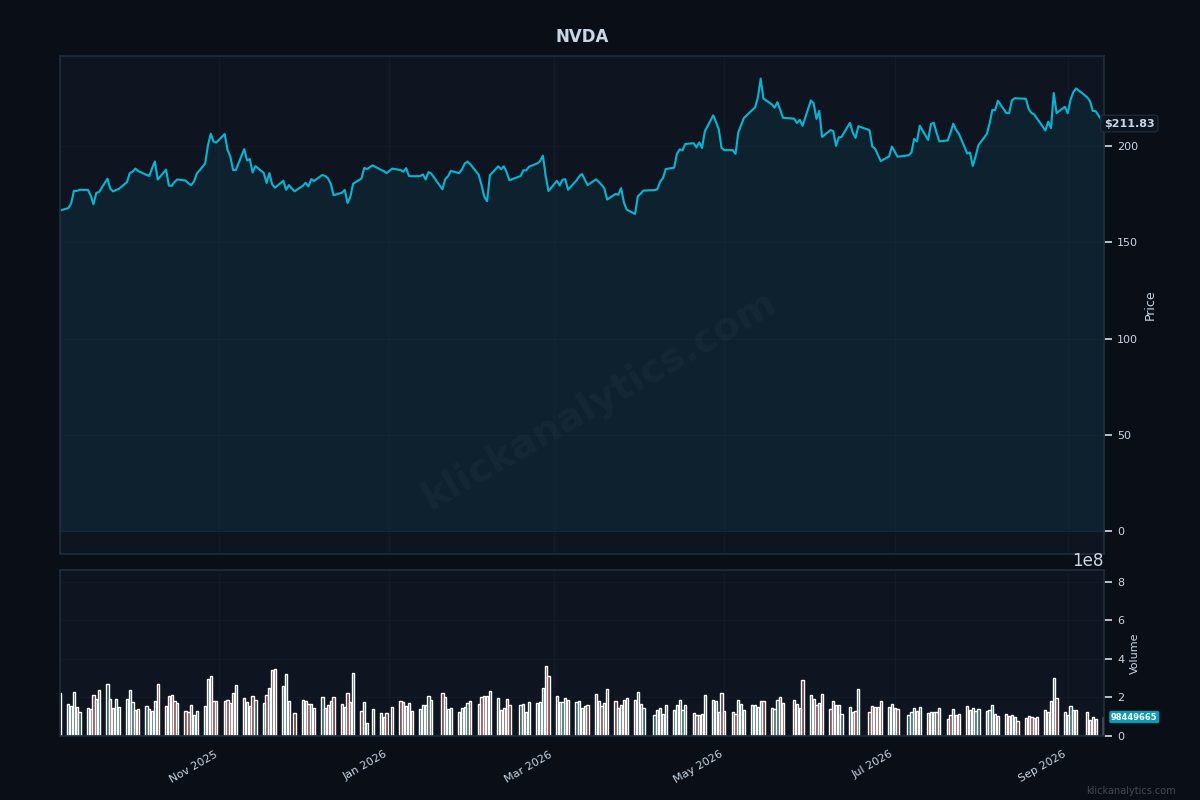
Step 6: find the command you need
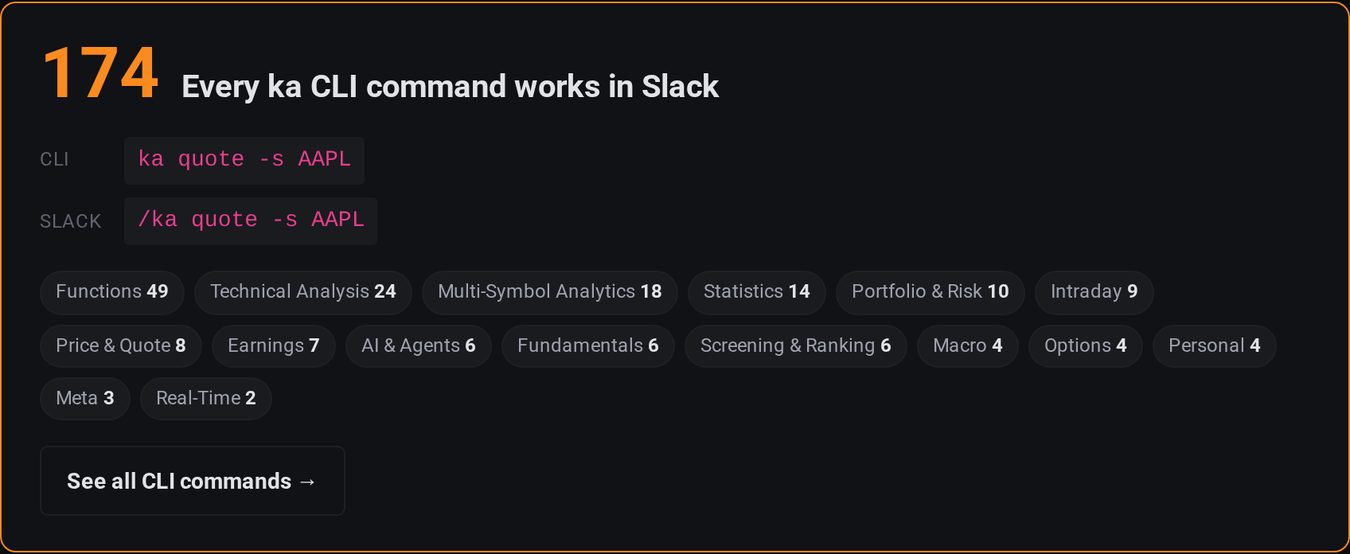
Nobody on the desk needs to learn more than 170 commands up front.
/ka search insiderlists commands by what they do. Each result has a Run button with a working example./ka helpbrowses every command by category — Technical Analysis, Earnings, Portfolio & Risk and the rest.- Mistype a command and the reply suggests the right one; leave out a required argument and it shows examples of the command used correctly.
Step 7: go further when an idea needs testing
The same commands the CLI offers for research work from Slack, which makes it easy to test a claim before it becomes a trade:
| Idea | Command |
|---|---|
| Technology names up this month without being overbought | /ka screener -filter "return_1m > 5 AND rsi14 < 70 AND sector = Technology" |
| Is there a seasonal pattern? | /ka seasonality -s SPY |
| What range of prices is plausible over six months? | /ka montecarlo AAPL -horizon 120 |
| What have insiders been doing? | /ka insiders NVDA |
Good habits
- Explore in a direct message, share in the channel. Channels stay readable when only conclusions are posted.
- Share charts rather than numbers when the point is a move or a trend.
- Anything you run in Slack runs in the CLI. When a command becomes part of a daily process, the same line works in scripts and in the terminal.
What is included
The free plan includes 25 commands a month for each person, a free trial includes 100, and paid plans are unlimited. Only commands that return a result count — browsing, searching and failed commands are free — and the count resets on the first of the month. Free and trial members can see how many they have left under each answer and on the app's Home tab.
If something does not work
| You see | What to do |
|---|---|
| “You mentioned @KlickAnalytics, but they're not in this channel” | Invite the app with /invite @KlickAnalytics, or use /ka, which needs no invitation. |
| A Connect account button instead of an answer | Your Slack account is not connected yet — click it and sign in. |
| “You've used all 25 free Slack commands this month” | Upgrade for unlimited commands, or wait for the count to reset on the first. |
| “Your KlickAnalytics account isn't active” | Contact support@klickanalytics.com. |