Run your desk rule book and company handbook in Wiki
Set up a trading desk manual from a template, make the numbers yours, protect the pages that are policy, and share one company handbook with every team.
Two documents do more to keep a trading business out of trouble than almost any other: the desk's rule book, and the company handbook. Both are usually PDFs that were accurate when someone exported them. This guide sets up both in Wiki so they stay accurate, show who changed what, and cannot be quietly edited or deleted by the wrong person.
Part 1: the desk rule book
Step 1: start from the Trading Desk template
Open My › Wiki, choose your desk's team, and pick New › Start from a template › Trading Desk. You get a Trading Desk folder with seven pages in three sub-folders:
| Folder | Pages |
|---|---|
| (top of the folder) | Desk Overview — what lives where, who owns it, the weekly rhythm |
| Policy | Rule Book, Risk Limits |
| Daily | Pre-Market Checklist, Earnings Playbook |
| When Things Break | Incident Post-Mortem, Stale Data Runbook |
The pages already link to each other — the Risk Limits page points at the post-mortem template, the pre-market checklist points at the earnings playbook — so the manual reads as one document from the start.
Step 2: make the numbers yours
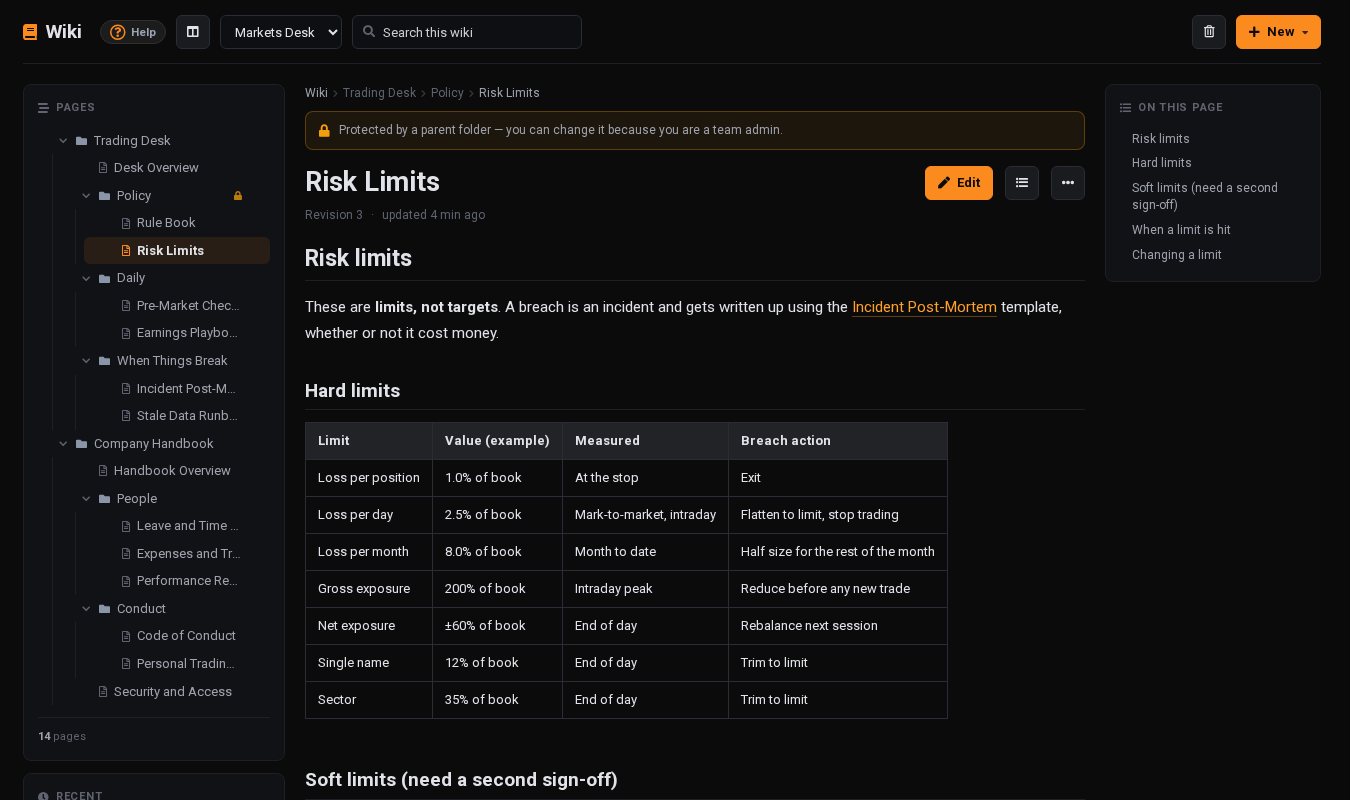
Every figure in the template is an example. Open Risk Limits, click Edit and change the table to your real limits: loss per position, per day and per month, gross and net exposure, single-name and sector concentration. Edit the Rule Book the same way until it says what your desk actually does.
While you are setting things up, untick Notify readers before saving so the rest of the team is not pinged for every draft. Tick it again for the save that matters.
Step 3: arrange it for how the desk works
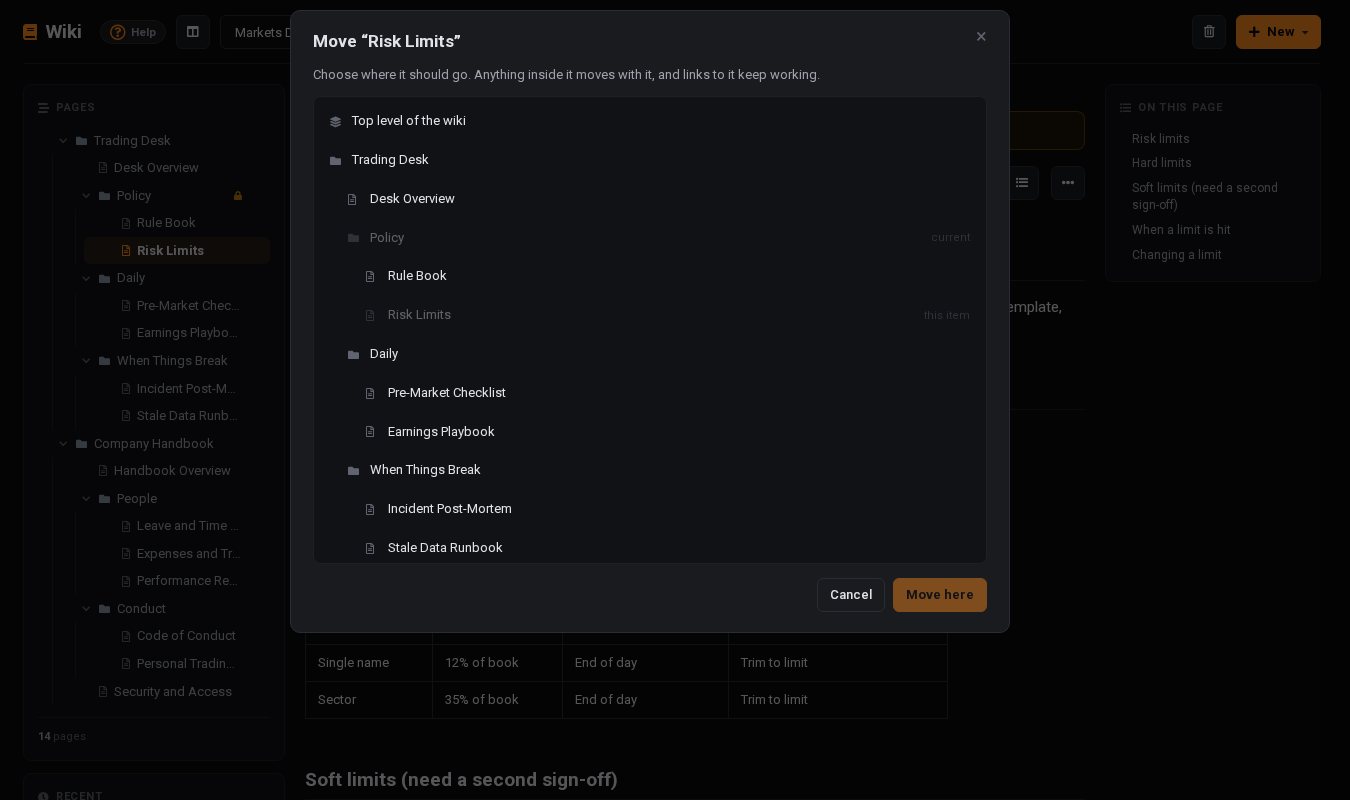
Drag pages by the handle that appears when you hover a row, or use ⋯ › Move to… to send one anywhere in the tree. A folder of post-mortems under When Things Break, a page per strategy under Policy — the structure is yours.
Step 4: protect the policy
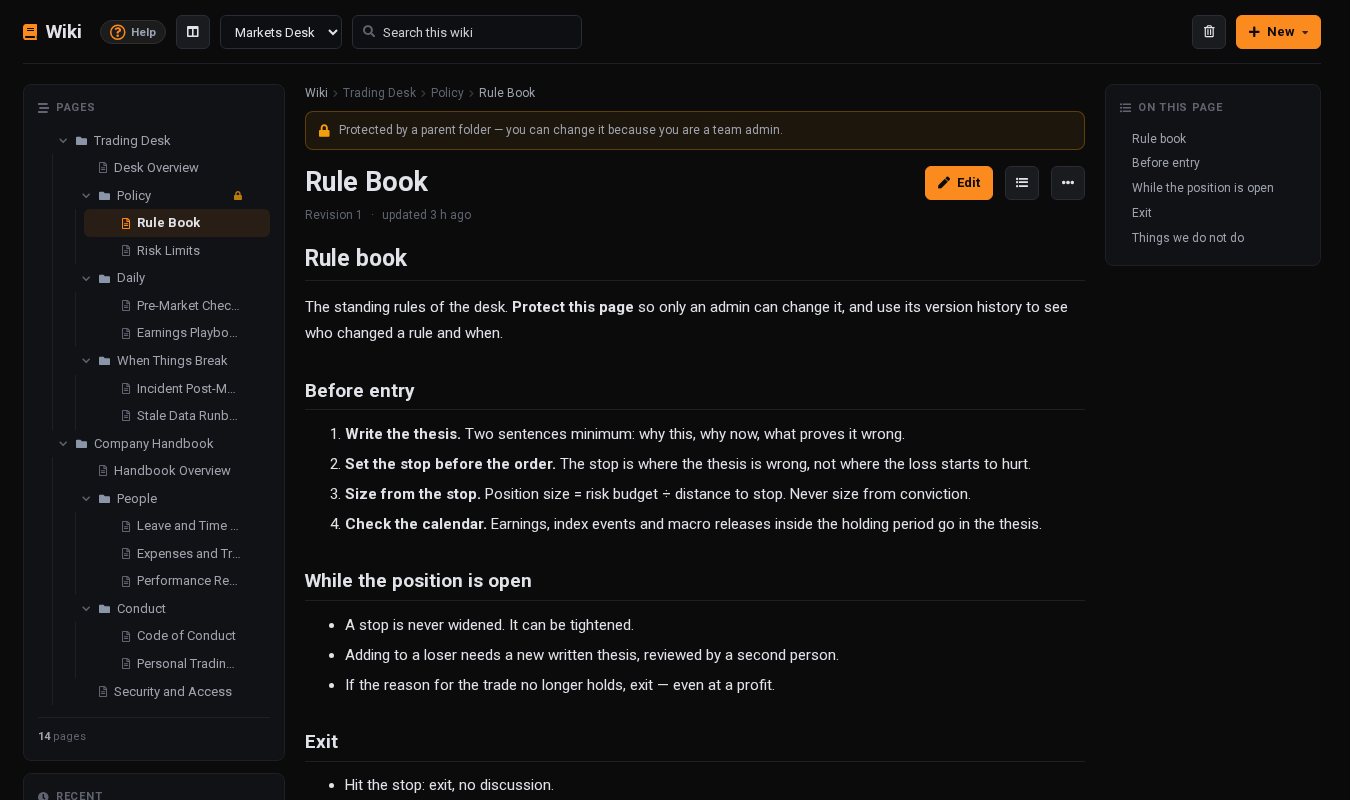
Rules should not change because someone had a bad afternoon. As a team admin, open the ⋯ menu on the Policy folder in the tree and choose Protect / unprotect. Every page inside it is now protected:
- only a team admin can edit, move or delete them — including the person who first wrote them;
- the page says so at the top, so nobody wonders why there is no Edit button;
- nothing can be dragged into or out of the folder except by an admin.
The image at the top of this post shows the Rule Book inside a protected Policy folder.
Step 5: let the history be the audit trail
When a limit changes, change it on the page. Every save keeps the previous version — up to 50 per page — with who saved it and when. ⋯ › Version history answers "when did the daily loss limit go from 3% to 2.5%, and who changed it?" without anyone having to remember, and restoring an earlier version keeps the current one in the history too.
Step 6: when something breaks
If a limit is breached or a price looks wrong, the desk already knows where to look. The Stale Data Runbook walks through checking whether data is really stale, whether a split explains a sudden drop, and when to stop trading a name. Afterwards, open the When Things Break folder's ⋯ menu, choose New page inside, and write the incident up following the Incident Post-Mortem template: summary, impact, timeline, root cause and actions.
Part 2: one handbook for every team
Step 7: add the Company Handbook
In whichever team owns HR and compliance, choose New › Start from a template › Company Handbook. It adds a Company Handbook folder with an overview, a People folder (leave and time off, expenses and travel, performance reviews), a Conduct folder (the code of conduct and the personal trading policy) and a page on security and access. Replace the example entitlements with your firm's real policy and have them checked by whoever owns HR and compliance.
Step 8: protect it, then share it with all teams
Protect the Company Handbook folder so only admins can change policy. Then — sharing is part of the paid plan — as the owner of that team, open the folder's ⋯ menu, choose Share with teams…, pick All teams and Read only, and click Share.
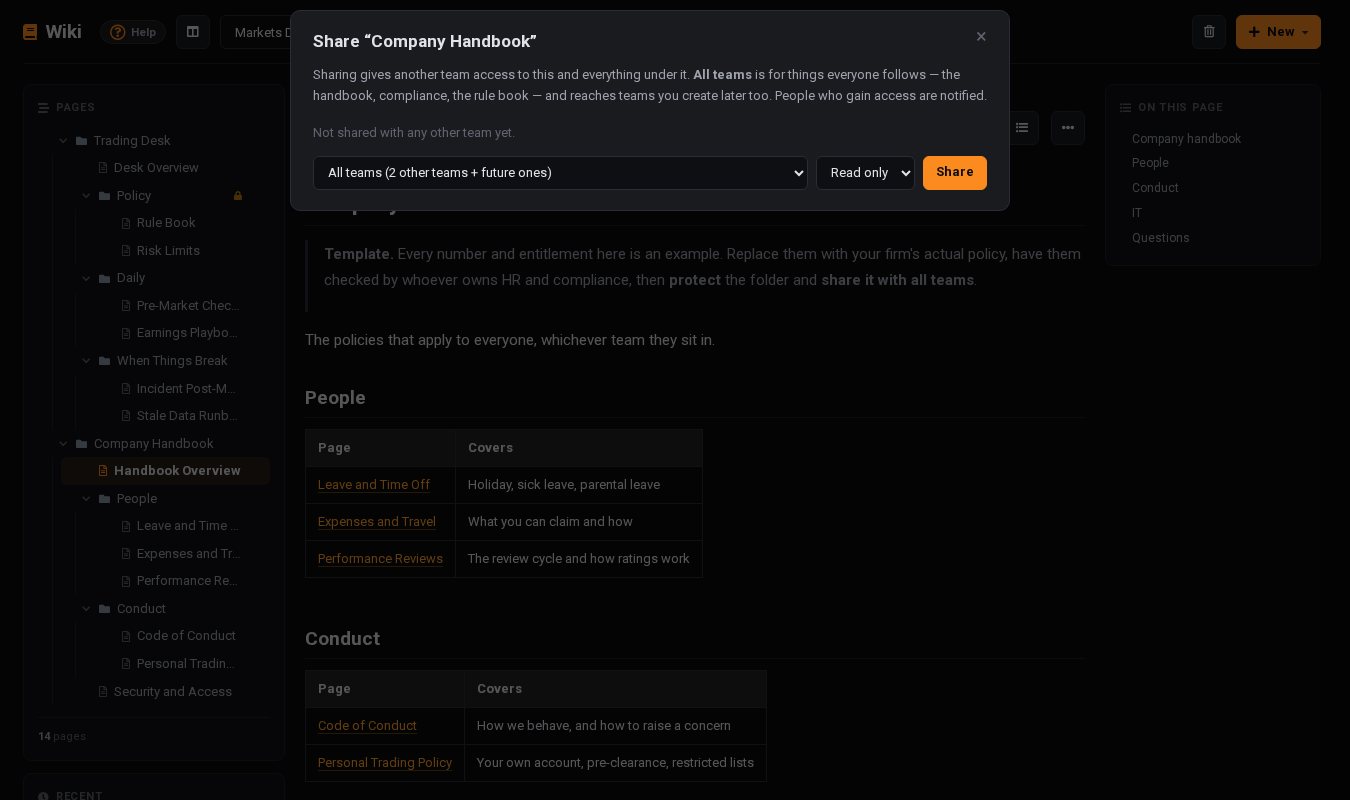
What happens next:
- everyone on your other teams gets a notification that opens the handbook;
- it appears in their own wiki under Shared with this team;
- they can read every page in the folder, and nothing else from the wiki it lives in;
- a team you create next month has it from day one — there is nothing to re-share.
Need one team to help maintain a page — say the desk keeps the personal trading policy current? Share that page with that team and choose Can edit. Protection still applies, so a protected page stays admin-only even for a team with edit access.
Step 9: keep people informed without flooding them
When the handbook changes, save with Notify readers ticked and everyone who can read the page — on every team it is shared with — sees it in their bell. Fixing a typo? Untick it. If someone makes several edits in a row, each reader sees one line, not ten.
A checklist to finish
- Every number in the templates replaced with your real one
- Policy and Company Handbook folders protected
- Handbook shared with all teams, read only
- Desk Overview's owner table filled in, so people know who to ask
- A reminder in the weekly review: what did we learn this week that is not written down yet?
Sharing with other teams and with all teams comes with a paid plan. Every team wiki — including on the free plan, with up to 10 pages and 10 folders — can use the templates, protection and version history described here.